Orchestra Bots
Below, we’ll walk through the various bots available in Orchestra.
StaffBot
Overview
StaffBot provides a simple way to ask/automatically staff a group
of Workers to work on a particular
Task. The goal is reduce the human load when finding a Worker
for a Task. StaffBot staffing begins in one of two ways:
A user clicks on the
Staffbutton in the project management or team information card in the Orchestra user interface.A
Taskhas an Assignment Policy that calls on StaffBot. allows a user to interact with Orchestra.
Once StaffBot becomes aware of a task to be staffed, it tries
staffing qualified Workers in two ways:
First, it looks for
Workerswho have requested work hours in theWork availabilitytab of their account settings but have not yet worked or been assigned their desired number of hours of work that day. It automatically assigns these workers the highest-priority tasks for which they are qualified.If a task can not be automatically assigned to a
Worker,StaffBotreaches out to qualifiedWorkersand offers them aTaskto work on via Slack/email and theAvailable tasksinterface.Workerscan then either accept or reject the task and start working on it.
Logic
When multiple tasks can be staffed, Orchestra prioritizes them in descending order of priority.
To staff a task, StaffBot considers candidate Workers who have
WorkerCertification objects for that task. It narrows those
Workers to ones with the WorkerCertification.staffbot_enabled
field set to True (it is True by default). If there are
multiple candidate Workers, Orchestra prioritizes in descending
order of the WorkerCertification.staffing_priority integer field
(0 by default). If Workers have the same
staffing_priority, StaffBot will prioritize them randomly.
In priority order, StaffBot first looks for any Worker that
has a WorkerAvailability for today. It considers three numbers:
The number of hours the
Workeris estimated to work that day if the task is assigned to them. This is the sum of the number of hours theWorkerhas tracked on their timecard, any hours it has already assigned theWorkerthat day, and the estimate of hours of work for thisTask(estimated by theTask.assignable_hours_function).The number of hours the
Workercan work. This is the minimum ofWorker.max_autostaff_hours_per_day(theWorker’s assignable limit) andWorkerAvailability.hours_available_DAY(the maximum hours theWorkerrequested for the day).The maximum number of automatically assignable tasks per
Workerper day (settings.ORCHESTRA_MAX_AUTOSTAFF_TASKS_PER_DAY), which is a failsafe to make sure an error doesn’t cause an out-of-control assignment condition.
If the hours the Worker can work is greater than the hours the
Worker is estimated to work including this new Task (and the
number of tasks assigned to them isn’t more than the day’s maximum),
the Task will be automatically assigned to the Worker.
If no Worker meets the automatic staffing condition, then
StaffBot sends requests to Workers to see if any prefer to
pick up tasks rather than be automatically assigned a
Task. Specifically, it sends requests in order of
staffing_priority to
settings.ORCHESTRA_STAFFBOT_WORKER_BATCH_SIZE Workers every
settings.ORCHESTRA_STAFFBOT_BATCH_FREQUENCY. These requests are
send via Slack and email, and appear in the Available tasks list
in the Orchestra user interface.
Utility functions
There are several utility functions to help operationalize StaffBot. You should call these through cron or some other scheduling utility:
orchestra.communication.staffing.address_staffing_requestsruns the automatic staffing and staffing request functionality described above.orchestra.communication.staffing.remind_workers_about_available_taskssends a reminder to any worker who has unclaimed task still available.orchestra.communication.staffing.warn_staffing_team_about_unstaffed_taskswarns administrators on the internal Slack channelORCHESTRA_STAFFBOT_STAFFING_GROUP_IDabout tasks that have not been staffed for more thanORCHESTRA_STAFFBOT_STAFFING_MIN_TIME.
Assignment Policy
StaffBot can automatically staff projects by specifying an Assignment
Policy. Orchestra supports custom logic for assigning Workers to tasks, and
StaffBot leverages this by asking qualified Workers if they would like
to work on a Task as soon as the Task is available. To specify the
StaffBot auto-assignment policy, which uses the same logic as the
/staffbot staff command, add the following to the Step configuration in
your version.json file. Following the Journalism Workflow Example we have:
[...step definition...]
"assignment_policy": {
    "policy_function": {
        "entry_level": {
            "path": "orchestra.bots.assignment_policies.staffbot_autoassign"
        }
    }
},
[...step definition...]
Now, for entry-level tasks within the defined step, StaffBot will
automatically try to staff this Task. If the task requires review, manual
assignment is necessary unless we add a reviewer key to the policy
function:
[...step definition...]
"assignment_policy": {
    "policy_function": {
        "entry_level": {
            "path": "orchestra.bots.assignment_policies.staffbot_autoassign"
        },
        "reviewer": {
            "path": "orchestra.bots.assignment_policies.staffbot_autoassign"
        }
    }
},
[...step definition...]
Detailed Description Function
The detailed_description_function is used to dynamically describe a
Task when StaffBot makes requests to Workers, offering them the
opportunity to work on the Task. The function is given a task_details
dictionary and can be passed extra kwargs as shown below:
[...step definition...]
"detailed_description_function": {
     "path": "my_project.orchestra_helpers.get_detailed_description",
     "kwargs": {
         "text": "Task text"
     }
}
[...step definition...]
# my_project/orchestra_helpers.py

def get_detailed_description(task_details **kwargs):
  return '''A new task is available!
            Find out more about {} at example.com/projects/{}!'''.format(
            kwargs.get('text'), task_details['project']['id'])
Usage
Automatic Task Staffing in Orchestra
StaffBot allows interaction with Orchestra via Slack to assign or reassign
an expert to a task. To use StaffBot, simply type /staffbot into your
slack window, and will see an autocomplete similar to:

You can send two different commands to StaffBot: 1) staff, and 2)
restaff.
Using the staff command
To use the staff command, you need to specify a <task-id> of a task
that is unassigned. You can find the <task-id> in the project view (shown
below) or from notification emails/Slack messages about a project.
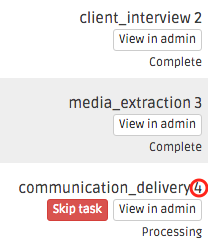
In this example, you have just finished the client_interview task and need
to add someone to the communication_delivery task with id 4 (shown in
red), so you can type:
/staffbot staff 4
Staffbot will then reach out to eligible experts asking them if they would
like to work on the task. Once one of them accepts, they will be added to the
private Slack channel for the project and can begin working on the task.
If a task has a review step, you can use StaffBot to assign an expert to
the review step once the first expert has submitted their work for review.
Using the restaff command
You can also use the restaff command to offer a task to a different expert.
This will be useful if a expert is unable to complete the task. Following the
example above, assume that the worker joshblum accepted the task 4.
To restaff this task you can type:
/staffbot restaff 4 joshblum
This will offer the task again to eligible experts, and once a new expert
accepts, joshblum will be removed and the new expert will be added.
SanityBot
Setup
SanityBot periodically looks at the state of a project and reminds
the project team about various things that seem off. For details and
motivation, see the original project description. SanityBot
currently warns project team members in the project team’s Slack
channel.
Project Configuration
To specify which sanity checks to run, and how frequently to run them,
update version.json for the workflow you are sanity-checking with
an optional sanity_checks entry. As an example:
[...workflow definition...]
"sanity_checks": {
  "sanity_check_function": {
      "path": "path.to.sanity.check.function"
  },
  "check_configurations": {
    "check_slug1": {
      "handlers": [{"type": "slack_project_channel", "message": "<message here>", "steps": ["step_slug1", ...]}],
      "repetition_seconds": 3600
    },
    ...
  },
}
...
Here’s a walkthrough of the configuration above:
sanity_check_functionis called periodically and generates SanityCheck objects. The function prototype isdef sanity_check_function(project: Project) -> List[SanityCheck]:.check_configurationsmapsSanityCheck.check_slugvalues to a configuration, which consists of a list of handlers and a repetition interval.in v1, the only handler is
slack_project_channel, which messages the team slack project, tagging the experts assigned to the tasks specified by in steps.An optional
repetition_secondscontains the number of seconds to wait before re-issuing/re-handling aSanityCheck. Ifrepetition_secondsdoes not appear in the map, thatSanityCheckis not repeated.
Scheduling function
To operationalize SanityBot, you should call
orchestra.bots.sanitybot.create_and_handle_sanity_checks through
cron or some other scheduling utility. This function will look at
all active projects with sanity_checks in their workflow
definitions, and call the appropriate sanity_check_function to
trigger sanity checks.